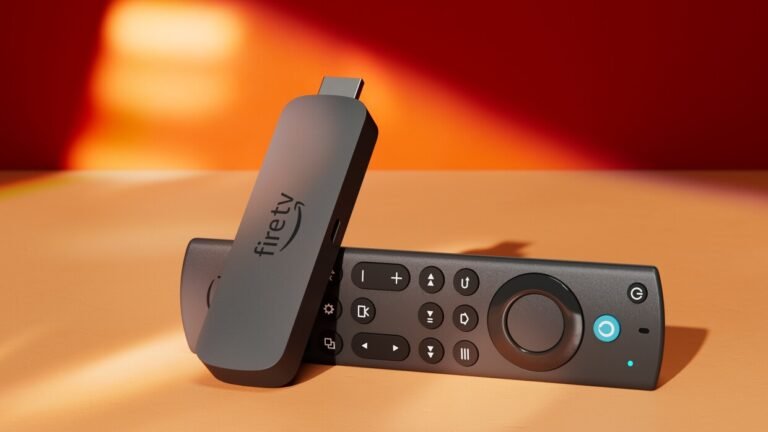
Step-by-Step Guide to Installing IPTV IBO Player on Firestick
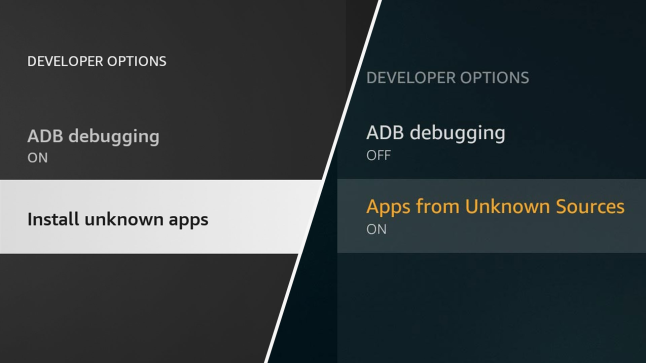
Step 1: Enable Apps from Unknown Sources
From the Firestick home screen, go to Settings (the gear icon).
Select My Fire TV → Developer Options.
Enable Apps from Unknown Sources and ADB Debugging.
(This allows you to install third-party applications and prepare your Firestick for your IPTV subscription.)
Step 2: Install the Downloader App
-
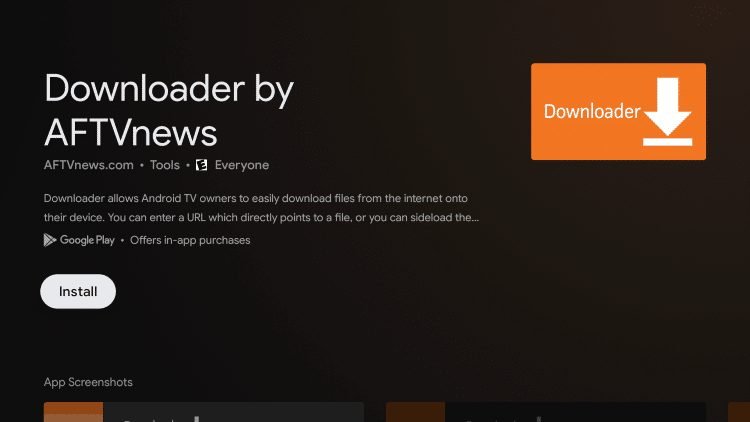
Return to the Firestick home screen and search for “Downloader” in the Amazon App Store.
-
Download the app and open it once the installation is complet
-
Step 3: Download IBO Player
-
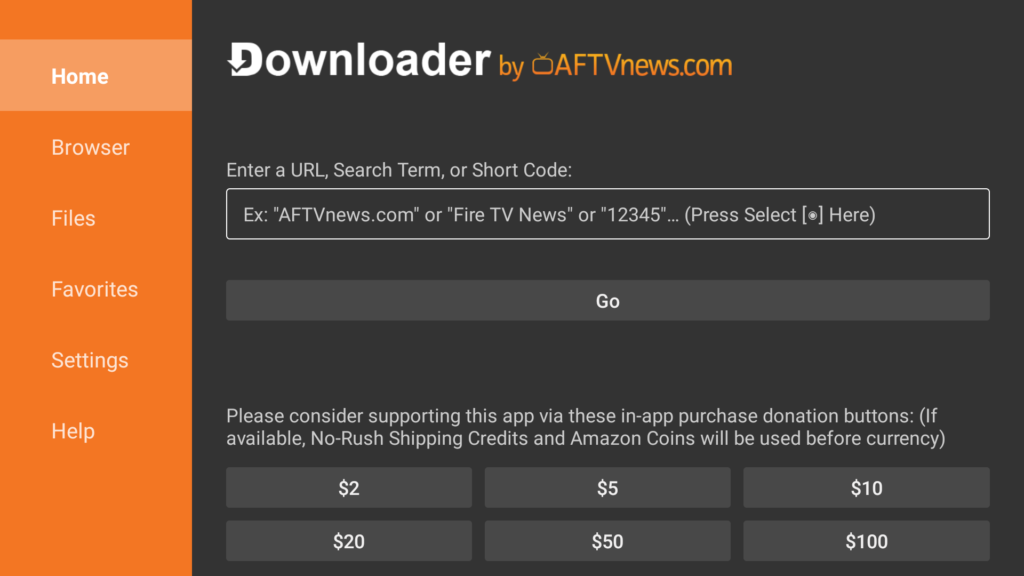
Open the Downloader app and enter the following code: 481220.
-
Click “Go” to start downloading the APK file
-
Step 4: Install the APK File
-
Once the download is complete, select “Install.”
-
Wait for the installation to finish, then click “Done.”
Step 5: Open the App and Send a Photo
-
Open the IBO Player app on your Firestick.
-
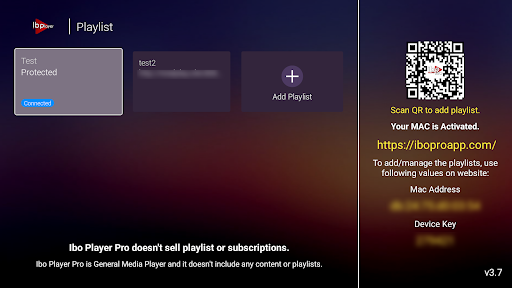
Once the app is launched, take a clear photo of the screen showing your MAC Address and Device Key.
-
Send the photo to us so we can complete the activation of your service.
-
A WordPress Commenter
September 28, 2026Hi, this is a comment.
To get started with moderating, editing, and deleting comments, please visit the Comments screen in the dashboard.
Commenter avatars come from Gravatar.