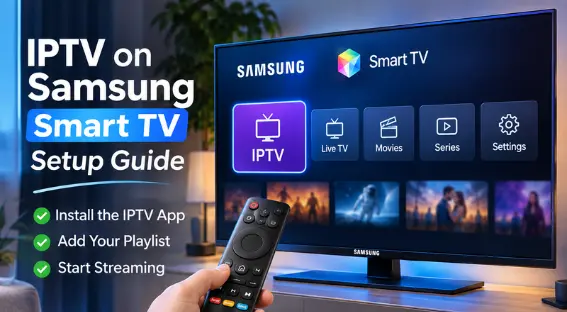
Want to watch IPTV on your Samsung Smart TV but aren’t sure where to start? This guide explains how to install a compatible IPTV player, configure your subscription, and troubleshoot common streaming problems.
Whether you’re using a newer Samsung television or an older compatible model, setting up IPTV on Samsung Smart TV can be straightforward once you understand which applications your television supports.
For viewers in Canada, the process is generally the same, although app availability can vary by TV model, region, and software version.
What Is IPTV on Samsung Smart TV?
IPTV (Internet Protocol Television) delivers television content through an internet connection instead of traditional cable or satellite infrastructure.
Samsung Smart TVs typically use the Tizen operating system, which supports a range of streaming applications available through Samsung’s app store.
With a compatible IPTV player and an authorized subscription, you may be able to access live television, on-demand movies, and TV series, depending on your service.
Unlike some Android TV devices, Samsung Tizen TVs generally cannot install Android APK files directly.
What You Need Before Installing IPTV
Before starting, make sure you have:
- A Samsung Smart TV with an internet connection.
- Access to the Samsung Apps or Smart Hub interface.
- A compatible IPTV player available for your model and region.
- An active, authorized IPTV subscription.
- The playlist URL or login credentials supplied by your service, if required.
- A stable broadband connection.
For HD streaming, a connection of approximately 5–10 Mbps per stream is a useful starting point. For 4K, consider 25 Mbps or more, depending on the provider and video format.
How to Install IPTV on Samsung Smart TV
Step 1: Connect Your Samsung TV to the Internet
First, turn on your Samsung Smart TV and ensure it is connected to your home network.
- Press the Home button on your Samsung remote.
- Open Settings.
- Select the network settings, which may appear under General or Connection.
- Choose Network Status or Open Network Settings.
- Connect to your Wi-Fi network or use an Ethernet cable.
A wired connection can provide greater stability, particularly for high-resolution video.
Step 2: Open the Samsung Apps Store
Once your TV is connected:
- Press the Home button.
- Navigate to Apps.
- Select the search function.
- Search for an IPTV player compatible with Samsung Tizen.
Depending on your TV model and region, examples of IPTV players you may encounter include IPTV Smarters Pro, SmartOne IPTV, or IBO Player.
These are examples, not a guarantee of current Samsung store availability. Always confirm compatibility and the application’s publisher before installation.
Step 3: Install a Compatible IPTV Player
When you find an appropriate application:
- Open its listing.
- Review its compatibility and pricing.
- Select Install.
- Wait for installation to finish.
- Open the application.
Some IPTV players charge a separate activation or licensing fee. This is different from your television content subscription.
Step 4: Add Your IPTV Playlist or Account
The next step depends on the application you installed.
Option A: M3U Playlist
If your player supports M3U playlists:
- Open the player.
- Find the playlist management section.
- Enter the M3U URL provided by your authorized IPTV service.
- Save the playlist.
- Allow the application to load the available content.
Some applications require you to upload the playlist through their official website using a device identifier rather than entering it directly on the TV.
Option B: Xtream Codes-Compatible Login
If supported by your player and service, you may be asked for:
- Server URL.
- Username.
- Password.
Enter the details provided by your service and follow the application’s instructions.
Keep these credentials private. Only enter them into a trusted application or official activation website.
Step 5: Start Streaming on Your Samsung TV
After the application has loaded your subscription information, navigate to the available categories.
Depending on your subscription, these may include live television, movies, TV series, or a program guide.
Choose content included in your authorized subscription and test playback.
If the video buffers, check your internet connection and the troubleshooting recommendations below.
Best IPTV Settings for Samsung Smart TV
The ideal settings depend on your Samsung model, IPTV application, and internet connection.
| Setting | Recommendation |
|---|---|
| Internet connection | Ethernet or stable 5 GHz Wi-Fi |
| Video quality | Match your TV and available bandwidth |
| App updates | Keep the player updated |
| TV software | Install official Samsung updates |
| Playlist | Use valid credentials from your provider |
| EPG | Configure only if supported and supplied |
| Time zone | Set the correct Canadian time zone |
Avoid changing advanced settings without knowing their purpose.
How to Fix IPTV Not Working on Samsung Smart TV
IPTV App Not Available
If you cannot find a particular IPTV player, check your Samsung TV model, software version, and region.
Not every application is available on every Samsung television.
You can also use a compatible external streaming device if your television does not support the application you need.
IPTV Keeps Buffering
Buffering can result from an unstable network, insufficient bandwidth, application problems, or issues with the streaming service.
Try these steps:
- Restart your television and router.
- Test your internet connection.
- Switch from Wi-Fi to Ethernet if possible.
- Close unnecessary applications.
- Lower playback quality if supported.
- Check whether other legitimate streaming services work normally.
If the problem affects only one IPTV service, contact its support team.
IPTV Playlist Is Not Loading
If your playlist fails to load:
- Check the URL for typing errors.
- Confirm that your subscription is active.
- Verify that the player supports the supplied playlist format.
- Ensure your login credentials are correct.
- Contact the service provider if the server is unavailable.
IPTV App Freezes or Crashes
Try updating the application and your television software. Restart the TV, and reinstall the app if necessary.
Reinstallation may erase saved settings, so retain your account details before proceeding.
Can You Install IPTV on Older Samsung Smart TVs?
Some older Samsung televisions use different operating systems or have limited application support.
If your model does not support a suitable IPTV player, an external device such as a compatible Fire TV or Android TV streaming device may be an alternative.
For more information, read our step-by-step IPTV installation guide for Firestick.
How to Choose an IPTV Subscription for Samsung Smart TV in Canada
Before purchasing an IPTV subscription, confirm that the service works with your Samsung TV and preferred application.
Consider the following factors:
- Samsung Tizen compatibility.
- Content licensing and availability in Canada.
- Subscription pricing in Canadian dollars.
- Video quality and bandwidth requirements.
- Simultaneous connection limits.
- Customer support.
- Renewal and cancellation conditions.
You can also review our IPTV subscription plans to compare the available options and check compatibility before ordering.
Frequently Asked Questions
Can I install IPTV directly on my Samsung Smart TV?
Yes, if a compatible IPTV player is available for your television model and region through Samsung’s app store. Availability varies.
Is IPTV free on Samsung Smart TV?
Some IPTV player applications are free, while others charge activation fees. Access to licensed television content may require a separate paid subscription.
Can I install an IPTV APK on Samsung Smart TV?
Samsung Tizen TVs generally do not support installing Android APK files directly. Use a compatible Tizen application or an external Android-based streaming device.
Why is IPTV buffering on my Samsung TV?
Common causes include unstable internet connectivity, insufficient bandwidth, application problems, or service-side streaming issues.
Does IPTV work on Samsung 4K TVs?
Compatible IPTV applications may work on Samsung 4K televisions. Actual 4K playback depends on the app, authorized content source, device capabilities, and internet speed.
Is IPTV legal in Canada?
IPTV is a legitimate delivery technology. However, services must have the appropriate rights to distribute copyrighted television, movies, and other content. Choose providers authorized to offer the content they advertise.
Conclusion
Setting up IPTV on Samsung Smart TV involves choosing a compatible application, connecting your television to the internet, and configuring your authorized IPTV subscription.
For the best experience, keep your television software updated, use a stable internet connection, and verify that your IPTV player supports your Samsung model.
If you’re comparing streaming options, explore our IPTV subscription plans in Canada and check the available features before purchasing.
