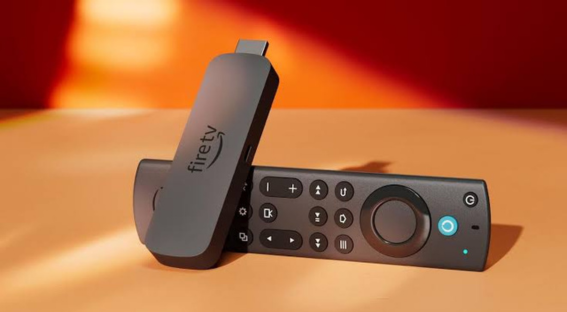
Amazon Fire TV Stick makes it easy to turn your television into a connected entertainment center. With a compatible streaming application, you can access your favorite content, including TV channels, movies, TV shows, and sports programs.
In this guide, you will learn how to install an IPTV app on Firestick, configure it correctly, and enjoy a smooth streaming experience.
1. Prepare Your Firestick
Before installing an application, make sure your device is properly configured.
You will need:
- An Amazon Fire TV Stick connected to your television.
- A stable internet connection.
- An Amazon account configured on your device.
- A compatible media player application.
- A valid subscription or access credentials for an authorized service.
Turn on your television, select the HDMI input connected to your Firestick, and make sure your Wi-Fi connection is working properly.
2. Search for an IPTV App on Firestick
The easiest installation method is to find your preferred application directly in the Amazon Appstore.
Follow these steps:
- From the Firestick home screen, select Find or Search.
- Enter the name of the application you want to install.
- Select the official application from the search results.
- Click Download or Get.
- Wait for the installation to finish.
- Select Open to launch the application.
Application availability may vary depending on your Fire TV Stick model and Amazon account region.
3. Install an App That Is Not Available in the Appstore
Some applications are not available directly through the Amazon Appstore. Depending on your device and the application, manual installation may be possible.
To proceed safely:
- Visit the application’s official developer website.
- Check whether the application is compatible with your Firestick.
- Follow the developer’s official installation instructions.
- If installing from an external source is necessary, enable the required permission only for a trusted source.
- Complete the installation and disable the permission again if it is no longer needed.
Avoid downloading installation files from unfamiliar websites, as they may contain malware or compromise your device’s security.
4. Configure Your IPTV Application
After installing the application, open it and follow the instructions displayed on your screen.
Depending on the application, you may be able to connect using one of the following methods:
- Login credentials: Enter the username, password, and server address provided by your service provider.
- Playlist URL: Add an M3U playlist URL if your application supports this format.
- Activation code: Enter the code displayed by your application on the corresponding official website, if this option is available.
Double-check all the information before saving your settings. An incorrect server address or login detail may prevent the content from loading.
Keep in mind that the media player and the subscription providing access to content are separate services. Some applications may also charge a separate activation fee.
5. Choose the Right IPTV Subscription for Firestick
To access the content offered by a streaming service, you need a valid subscription compatible with your chosen application.
Before purchasing an iptv subscription, consider the following factors:
- Compatibility with Amazon Fire TV Stick.
- The number of devices or simultaneous connections permitted.
- Available video quality, including HD, Full HD, or 4K where supported.
- The availability of the channels and content you want to watch.
- Renewal conditions and customer support options.
Looking for a suitable plan? Visit our IPTV Subscription checkout page to explore the available subscription options.
Review the details of each plan carefully before making your choice.
6. Fix Common IPTV Problems on Firestick
If your application is not working correctly, try these simple troubleshooting steps.
The Application Will Not Install
Check your available storage space, application compatibility, and internet connection. Restart your Firestick and try installing the application again.
Channels Are Not Loading
Verify your login credentials, server address, and subscription status. You can also close and restart the application.
Streaming Keeps Buffering
Move your Firestick closer to your Wi-Fi router, restart your internet connection, and close applications running in the background. If supported, using a compatible Ethernet adapter may help improve connection stability.
The Application Shows a Connection Error
Make sure your subscription is active and the service is available. If the problem continues, contact the application’s support team or your service provider.
7. Enjoy Streaming on Your Television
Once the installation and configuration are complete, use your Firestick remote to navigate through the application.
For the best experience, keep your device updated, maintain a stable internet connection, and install applications only from trusted sources. Also, make sure the content you access is properly licensed for distribution.
Conclusion
Installing an IPTV app on Firestick is usually straightforward when you choose a compatible application and follow the correct setup instructions.
In just a few steps, you can prepare your device for streaming and explore the features offered by your chosen application. To get started, compare available plans and choose an iptv subscription that suits your device, viewing preferences, and budget.
Explore available subscription plans here: https://subscription-iptv.ca/subscription/

IPTV Subscription - Subscription IPTV
November 3, 2026[…] For detailed instructions, read our step-by-step guide on how to install an IPTV app on Firestick. […]
IPTV Subscription - Subscription IPTV
November 16, 2026[…] For more information, read our step-by-step IPTV installation guide for Firestick. […]